Learn how to protect your Google account from hackers with 2-Step Verification, passkeys, Security Checkup, and smart phishing defenses.
How to Protect Your Google Account From Hackers
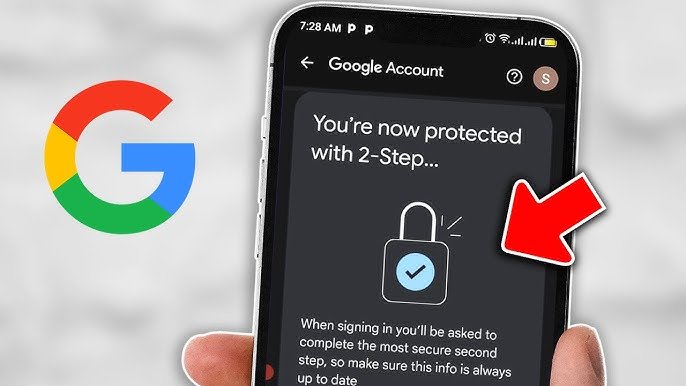
The fastest way to protect your Google account right now: turn on 2-Step Verification (or better, add a passkey), run Google’s free Security Checkup, and confirm your recovery phone and email are current. Do those three things today and you close off the paths attackers use most often to break in. The rest of this guide covers why each step matters, what’s changed about Gmail security in 2026, and what to do if you think you’re already locked out.
Why Google Accounts Are Such a Popular Target
Roughly 3 billion people use Gmail, which alone makes it worth attacking at scale — a single compromised account often unlocks Drive files, saved passwords, Photos, and whatever other services someone signs into with “Sign in with Google.” Google’s own June 2026 fraud advisory put global losses at $580 billion for 2025, touching close to one in five adults worldwide.
What’s changed is the quality of the bait. Generative AI now writes phishing emails with clean grammar, accurate branding, and personal details pulled from public profiles. Security researchers tracked AI-generated phishing jumping roughly fourteenfold in December 2025 alone, and by early 2026 it accounted for an estimated 82.6% of phishing emails landing in inboxes. The old advice — look for typos — barely applies anymore.
Passkeys vs. Two-Step Verification: What Actually Stops Hackers
Passkeys are Google’s biggest security push this year, and for good reason. Instead of a password you can forget or a code you can be tricked into handing over, a passkey uses your device’s screen lock — fingerprint, face scan, or PIN — to sign you in through public-key cryptography. Nothing gets typed, so there’s nothing for a fake login page to steal. Google introduced passkeys for personal accounts back in 2023, but 2026 is when the company started pushing them as the default rather than the alternative.
Here’s the catch, though: a passkey alone isn’t the whole answer. Google has said plainly that even people who normally sign in with a passkey should still keep 2-Step Verification active as a backup, because account recovery flows and older devices can still lean on weaker methods. Microsoft has made a similar point about its own ecosystem — an account is only as strong as its weakest remaining credential, passkey or not. So the real move for account protection isn’t “passkey instead of 2FA.” It’s passkey plus 2-Step Verification, so a lost device or a recovery attempt doesn’t become the soft spot an attacker goes after instead.
If passkeys feel like a bigger change than you want to make right now, standard 2-Step Verification — a code from an authenticator app, not SMS if you can help it — still blocks the overwhelming majority of automated password-stuffing attacks. It’s one of the simplest ways to protect your Google account without buying new hardware.
Run Google’s Security Checkup — But Type the URL Yourself
Two minutes. That’s roughly all Security Checkup takes, and it’s the closest thing Google offers to a full account audit in one place. It reviews which devices are currently signed in, flags weak or reused saved passwords, lists third-party apps with access to your data, and shows recent security activity from the last 28 days so you can spot a sign-in you don’t recognize.
There’s a wrinkle worth knowing about, though. In early 2026, researchers at Malwarebytes documented attackers building fake “Security Checkup” pages designed to walk victims through a convincing four-step flow that actually hands over account access. The lesson isn’t to skip the checkup — it’s to reach it the right way. Go to myaccount.google.com directly or open it from inside the Google app you’re already signed into, rather than clicking a link that arrived by email or text. Making Security Checkup a habit, done through official channels, is still one of the single best free steps toward protecting a Google account.
The New Phishing Tricks Hitting Gmail in 2026
What do a fake login page and a calendar invite have in common? This year, quite a lot. Google’s June 2026 scam advisory called out three techniques specifically targeting Gmail users.
Adversary-in-the-middle (AITM) attacks sit between you and the real Google login page, quietly relaying your password and one-time code through in real time while also capturing the session cookie your browser gets afterward. That cookie is the dangerous part — it can let an attacker stay logged in without ever needing your password again, which is why this method can slip past standard 2-Step Verification. Google is rolling out a defense called Device Bound Session Credentials specifically to make a stolen cookie useless on any device other than yours.
Calendar invite phishing skips the inbox entirely. Because Google Calendar can auto-add events from incoming invitations, an attacker sends one disguised as a payment failure or subscription renewal, and it shows up on your schedule looking self-created. A reminder notification then nags you toward a phishing form. And ClickFix scams — fake “update your browser” or “fix this error” prompts — trick people into pasting malicious commands themselves, sidestepping antivirus tools that watch for downloads instead of copy-paste.
None of these rely on obvious red flags anymore. The more reliable checks are structural: does the sender’s actual domain match, where does the link really point, and is this request something you initiated yourself.
Lock Down Your Recovery Options
Recovery phone numbers and email addresses matter almost as much as your password for Google account recovery. They’re what Google uses to verify it’s really you if something goes wrong — and, if compromised, they’re what an attacker uses to lock you out permanently.
Keep both current, and check them during your Security Checkup rather than assuming they’re still accurate. One built-in safeguard: if recovery info on an account does get changed, Google delays those changes taking full effect for up to seven days, which gives the real owner a window to catch it and intervene.
Who Should Enroll in the Advanced Protection Program
Advanced Protection is Google’s strongest tier of account protection, and it’s built for people facing targeted attacks rather than random spam — journalists, activists, campaign staff, business leaders, and IT administrators among them. Enrolling requires signing in with a physical security key or a passkey; even someone who has your username and password correctly typed in can’t get past that requirement without the physical device or key.
The program also restricts account access to Google apps and verified third-party services only, blocking the kind of app-permission tricks that let attackers impersonate legitimate software. In Chrome, it adds stricter scanning before risky downloads complete. It’s more friction day-to-day, which is exactly the point for anyone whose Google account would be a valuable target.
Security Levels at a Glance
| Method | Stops stolen passwords | Resists phishing | Resists session/cookie theft | Best for |
|---|---|---|---|---|
| Password only | No | No | No | Nobody, honestly |
| Password + SMS 2-Step Verification | Yes | Partial | No | Casual accounts, low risk |
| Password + authenticator app 2FA | Yes | Good | No | Most personal accounts |
| Passkey + 2-Step Verification backup | Yes | Strong | Partial | Anyone serious about Gmail security |
| Advanced Protection Program | Yes | Strong | Strong | High-risk users, public figures |
If You Think You’ve Already Been Hacked
Already locked out? Start at g.co/recover, ideally from a device, browser, and location you’ve used to sign in before — Google’s recovery system weighs that familiarity when deciding whether to trust you. Enter any password you remember, even an old one; the process accepts your best guess and doesn’t cut you off for wrong answers, so there’s no real limit to how many times you can try.
If the account’s recovery info was changed by whoever got in, recovery is still possible. Google’s account history questions — like your approximate account creation date — don’t depend on info an attacker could have already swapped out. And one thing worth remembering while you’re stressed and searching for help: Google doesn’t make outbound phone calls to help you sign in, and any “support” service offering to do so isn’t legitimate. Once you’re back in, run Security Checkup immediately, sign out of unfamiliar devices, and add 2-Step Verification or a passkey before you do anything else.
FAQs
Is 2-Step Verification enough to protect my Google account?
It stops most automated attacks and credential-stuffing attempts, but sophisticated adversary-in-the-middle phishing can intercept both your password and your one-time code in real time. Passkeys close that gap more effectively.
What’s the difference between a passkey and two-factor authentication?
A passkey replaces your password entirely with your device’s screen lock. Two-factor authentication (2-Step Verification) keeps your password but adds a second check, usually a code. Google recommends using both together, not one instead of the other.
How do I know if my Google account has been hacked?
Watch for a changed password or recovery info you didn’t set, unfamiliar devices under Security Checkup, sent emails you don’t recognize in Gmail, or purchases and app activity you didn’t authorize.
Can I recover my Google account without a phone number?
Yes. Google’s recovery flow can rely on a recovery email, a trusted signed-in device, or account history questions like your approximate creation date, though having a working recovery phone speeds things up considerably.
Does Google ever call me to “verify” my account?
No. Google does not provide phone support to help you sign in, and any caller claiming to be Google support asking for a password or verification code is running a scam.
Should I keep an authenticator app if I already set up a passkey?
Yes. Google specifically recommends keeping 2-Step Verification active as a backup even after adding a passkey, in case a device is lost or someone attempts to impersonate you during recovery.
What is the Advanced Protection Program, and do I need it?
It’s Google’s strictest security tier, requiring a physical security key or passkey to sign in and blocking unverified third-party app access. It’s aimed at journalists, activists, executives, and anyone facing targeted rather than random attacks — most personal users don’t need it, but it’s free to enroll in if your risk profile warrants it.