
These hidden WhatsApp privacy settings do more than the basics — chat locks, IP protection, and a new way to hide your number entirely.
Hidden WhatsApp Settings That Improve Privacy
Most people only ever touch three WhatsApp privacy settings: who sees their profile photo, who sees “last seen,” and whether read receipts are on. That barely scratches the surface. WhatsApp’s real WhatsApp privacy settings live several menus deeper — chat locks with secret codes, call relays that hide your IP address, a brand-new username system that hides your phone number entirely. None of it is hard to turn on. It’s just buried.
This guide walks through the settings that actually move the needle, where to find each one, and what it does and doesn’t protect against.
Chat Lock Has a Setting Most People Skip
Chat Lock moves an individual conversation behind Face ID, a fingerprint, or your phone’s passcode. It’s been part of WhatsApp’s privacy features for a while now, and most people who use it stop there. The part worth knowing is the secret code option sitting underneath it.
Instead of using your phone’s default lock, you can set a separate code just for locked chats — one your partner, your kid, or whoever else has your passcode doesn’t know. Locked chats disappear from your main chat list entirely and only reappear when you type that code into the search bar.
- Open Settings > Privacy > Chat Lock (or long-press an individual chat and select Lock Chat).
- Choose the chat you want hidden and confirm with biometrics or your passcode.
- Optionally set a secret code from the same menu so locked chats stay invisible even to someone holding your unlocked phone.
Advanced Chat Privacy: What Actually Leaves the App
This one solves a different problem. Chat Lock hides a conversation from your phone. Advanced Chat Privacy controls what other people in that conversation can do with it once you’ve shared it.
Turn it on for a chat or group, and WhatsApp blocks three things: exporting the full chat history as a file, auto-downloading shared photos and videos to anyone’s gallery, and feeding that chat’s content into Meta AI features. It doesn’t stop screenshots — WhatsApp has said openly that screenshot detection is easy to bypass through WhatsApp Web anyway, so they didn’t bother building it. Think of it as removing the easy, automated ways a conversation leaks, not a guarantee against a determined person with a second phone.
- Open the chat or group, tap the name at the top, then Advanced Chat Privacy.
- Toggle it on. Everyone in the chat gets notified that the setting changed.
- In groups, admins can enable it from group settings so it applies to every member at once.
Usernames Just Replaced Your Phone Number as Your ID
This is the newest addition to WhatsApp’s privacy features, and it’s arguably the biggest one in years. As of late June, WhatsApp lets you reserve a username — three to 35 characters — that strangers can use to reach you instead of your phone number. WhatsApp’s product VP, Alice Newton-Rex, described it to reporters as a core privacy feature rather than a social one; there’s no public directory and no autocomplete, so someone has to already know your exact username to find you.
That matters more than it sounds. Joining a parent group for your kid’s soccer team, handing your number to a stranger at an event, getting added to a community chat — all of these used to mean permanently exposing a number tied to your entire digital life. A username breaks that link. You can even set an optional key that filters out anyone who doesn’t have it.
- Go to Settings > Account > Username.
- Reserve a username now; the full messaging feature is rolling out gradually through the rest of the year.
- Set an optional username key if you want an extra filter on who can reach you cold.
Alice Tech will have a closer look at the full rollout once usernames go live everywhere — for now, reserving one costs nothing and locks in the name before someone else takes it.
Why Your Calls Might Be Leaking Your Location
Every WhatsApp call is end-to-end encrypted, but encryption doesn’t hide your IP address from the person on the other end — and an IP address can reveal your general location and internet provider. Protect IP Address in Calls fixes that by routing your calls through WhatsApp’s own servers instead of connecting directly.
Call quality can dip slightly since the connection isn’t peer-to-peer anymore. For most people, that trade-off is barely noticeable. For journalists, activists, or anyone talking to people they don’t fully trust, it’s one of the more meaningful WhatsApp security settings available.
- Open Settings > Privacy > Advanced.
- Tap Protect IP address in calls and switch it on.
- It applies automatically to every call going forward — no need to toggle it per conversation.
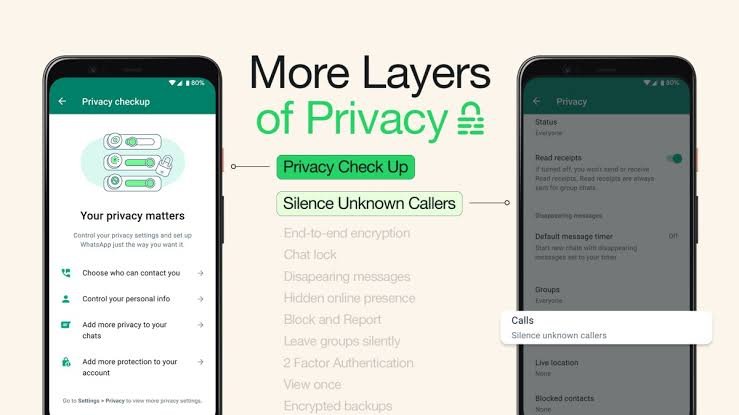
Silence Unknown Callers, Screen Out the Rest
Spam calls and scam attempts are one thing. WhatsApp also built this feature partly as defense against a nastier problem: zero-click attacks, where a malicious call itself — not a link, not an attachment — can be used to compromise a device before you even answer.
With Silence Unknown Callers on, calls from numbers not in your contacts simply don’t ring. They still show up in your Calls tab afterward, so nothing important gets lost, but the constant interruption from unknown numbers stops.
- Go to Settings > Privacy > Calls.
- Toggle Silence Unknown Callers.
- Check your Calls tab periodically in case a legitimate contact reaches out from a new number.
The Overlooked “My Contacts Except” Setting
Profile photo, About text, and last seen status all default to a binary choice most people never revisit: everyone or my contacts. There’s a fourth option that solves an awkward, common situation — you don’t want to block a coworker or an ex, but you also don’t want them seeing when you’re online.
“My Contacts Except” lets you exclude specific people without blocking them outright. They stay in your contacts, conversations continue normally, and they simply stop seeing the information you’ve hidden from them.
- Open Settings > Privacy.
- Tap Profile Photo, About, or Last Seen & Online.
- Select My Contacts Except and choose who to exclude.
Run a Privacy Checkup in Under Two Minutes
Not everyone wants to hunt through six different menus. WhatsApp’s Privacy Checkup exists for exactly that reason — it’s a short, guided walkthrough that surfaces the settings above (and a few others) in one place, with plain-language explanations instead of toggle labels.
It’s a reasonable starting point if this is your first real pass at locking down your account, and a good habit to repeat every few months, since WhatsApp keeps adding settings to the list.
- Open Settings > Privacy.
- Tap Start Checkup near the top of the page.
- Step through each prompt and adjust settings as they come up.
A Few More Settings Worth a Look
Beyond the deeper cuts above, a handful of older WhatsApp privacy settings are worth confirming are actually on. Disappearing messages remove content automatically after a set window, which matters most in group chats you don’t fully control. Encrypted backups extend WhatsApp’s end-to-end encryption to your chat history stored on Google Drive or iCloud, which otherwise sit unencrypted by default. Two-step verification adds a PIN requirement on top of SMS codes, closing the door on SIM-swap attacks. And View Once media already blocks screenshots automatically, so there’s nothing to configure there beyond using the feature itself.
So Which Settings Actually Matter?
Not everyone needs all seven. If you’re an average user, Chat Lock, Silence Unknown Callers, and two-step verification cover most realistic risks with almost no effort. If you regularly share sensitive information in groups — medical details, financial discussions, anything with legal weight — Advanced Chat Privacy earns its place too. And if your safety genuinely depends on staying untraceable, the IP protection and username settings aren’t optional extras; they’re the whole point.
WhatsApp’s privacy tools have quietly become more capable than most people give the app credit for. Turning them on takes minutes. Simple as that.
FAQs
For Hidden WhatsApp Privacy Settings
Does Chat Lock hide messages from notifications too? Yes. Locked chats don’t show message previews in notifications by default, and the chat itself disappears from your main list until unlocked.
Can Advanced Chat Privacy stop someone from screenshotting a chat? No. It blocks exporting, auto-downloading media, and Meta AI access to the chat, but WhatsApp has confirmed it doesn’t detect or block screenshots.
Do I need a phone number to use WhatsApp usernames? Yes. A phone number is still required to create a WhatsApp account. Usernames replace what you share with new contacts, not the account setup itself.
Does Protect IP Address in Calls affect call quality? Slightly. Since calls route through WhatsApp’s servers instead of connecting directly, you may notice a small dip compared to a direct connection.
Is Silence Unknown Callers the same as blocking someone? No. Silenced calls simply don’t ring your phone; they still appear in your Calls tab, and the person isn’t blocked from messaging you.
How often should I run a Privacy Checkup? Every few months, or any time WhatsApp announces new privacy features, since Checkup is updated to reflect whatever settings currently exist.